Last time, I hinted that I wanted to explore connecting Crestron to Zoom Room Controls. I mostly run into this setup when a customer is replacing their video conference systems with Zoom rooms.
The scenario I’ll explore is: the user has a DMPS they’d like to continue using. They also want to be able to route non-computer sources to the displays once in a while (such as a cable TV box). They want to have 3 favorite channels available in Zoom. The user should have some flexibility to change the Zoom Room Controls without needing to touch the Crestron program (say they want to add another source).
ZRC Profile
Lets get the JSON part out of the way. I’m going to build off the same template we created last time. This file is also saved in my GitHub (as zrc-crestron-dmps.json). Here is the whole file:
{
    "about": {
        "type": "Crestron DMPS Control",
        "version": "1.0.0",
        "author": "Kiel Lofstrand"
    },
    "adapters": [
        {
            "model": "GenericNetworkAdapter",
            "ip": "tcp://192.168.1.50:50001",
            "uuid": "CrestronDevice_1",
            "ports": [
                {
                    "id": "displayLeft",
                    "name": "Left Display",
                    "methods": [
                        {
                            "id": "powerToggle",
                            "Name": "Power Toggle",
                            "type": "action",
                            "command": "power tog\\x0D"
                        },
                        {
                            "id": "power",
                            "name": "Power",
                            "type": "actions",
                            "command": "power %\\x0D",
                            "params": [
                                {
                                    "id": "on",
                                    "name": "On",
                                    "value": "on"
                                },
                                {
                                    "id": "off",
                                    "name": "Off",
                                    "value": "off"
                                },
                                {
                                    "id": "tog",
                                    "name": "Toggle",
                                    "value": "tog"
                                }
                            ]
                        },
                        {
                            "id": "source",
                            "name": "Source",
                            "type": "actions",
                            "command": "source %\\x0D",
                            "params": [
                                {
                                    "id": "zoom",
                                    "name": "Zoom",
                                    "value": "1"
                                },
                                {
                                    "id": "catv",
                                    "name": "Cable TV",
                                    "value": "3"
                                }
                            ]
                        }
                    ]
                }
            ]
        },
        {
            "model": "GenericNetworkAdapter",
            "ip": "tcp://192.168.1.50:50002",
            "uuid": "CrestronDevice_2",
            "ports": [
                {
                    "id": "displayRight",
                    "name": "Right Display",
                    "methods": [
                        {
                            "id": "powerToggle",
                            "Name": "Power Toggle",
                            "type": "action",
                            "command": "power tog\\x0D"
                        },
                        {
                            "id": "power",
                            "name": "Power",
                            "type": "actions",
                            "command": "power %\\x0D",
                            "params": [
                                {
                                    "id": "on",
                                    "name": "On",
                                    "value": "on"
                                },
                                {
                                    "id": "off",
                                    "name": "Off",
                                    "value": "off"
                                },
                                {
                                    "id": "tog",
                                    "name": "Toggle",
                                    "value": "tog"
                                }
                            ]
                        },
                        {
                            "id": "source",
                            "name": "Source",
                            "type": "actions",
                            "command": "source %\\x0D",
                            "params": [
                                {
                                    "id": "zoom",
                                    "name": "Zoom",
                                    "value": "2"
                                },
                                {
                                    "id": "catv",
                                    "name": "Cable TV",
                                    "value": "3"
                                }
                            ]
                        }
                    ]
                }
            ]
        },
        {
            "model": "GenericNetworkAdapter",
            "ip": "tcp://192.168.1.50:50003",
            "uuid": "CrestronDevice_3",
            "ports": [
                {
                    "id": "catv",
                    "name": "Cable TV",
                    "methods": [
                        {
                            "id": "presets",
                            "name": "Presets",
                            "type": "actions",
                            "command": "preset %\\x0D",
                            "params": [
                                {
                                    "id": "preset1",
                                    "name": "ABC",
                                    "value": "111"
                                },
                                {
                                    "id": "preset2",
                                    "name": "NBC",
                                    "value": "222"
                                },
                                {
                                    "id": "preset3",
                                    "name": "FOX",
                                    "value": "333"
                                }
                            ]
                        }
                    ]
                }
            ]
        }
    ],
    "styles": [
        "displayLeft.icon=icon_tv",
        "displayLeft.main_method=powerToggle",
        "displayLeft.powerToggle.icon=icon_power",
        "displayLeft.power.invisible=true",
        "displayRight.icon=icon_tv",
        "displayRight.main_method=powerToggle",
        "displayRight.powerToggle.icon=icon_power",
        "displayRight.power.invisible=true",
        "catv.icon=icon_cable_tv"
    ],
    "rules": {
        "meeting_started": [
            "displayLeft.power.on",
            "displayRight.power.on",
            "displayLeft.source.zoom",
            "displayRight.source.zoom"
        ]
    }
}
I’ve added some rules to make sure that when a meeting starts that both TVs are powered on and Zoom is routed to the display. Here is what it looks like:

Some things I’d like to call out that are different from the last time we wrote a JSON profile:
"adapters": [
    {
        "model": "GenericNetworkAdapter",
        "ip": "tcp://192.168.1.50:50001",
        "uuid": "CrestronDevice_1",
        "ports": [
This time we tell Zoom to specifically connect to the DMPS (192.168.1.50) on TCP port 50001. This will be a TCP Server in our Crestron program specifically listening for commands related to the left display.
We do the same thing for the right display, just bump the port number up by 1:
},
{
    "model": "GenericNetworkAdapter",
    "ip": "tcp://192.168.1.50:50002",
    "uuid": "CrestronDevice_2",
    "ports": [
And then we treat the cable TV box as another device, bumping the port number up yet again:
},
{
    "model": "GenericNetworkAdapter",
    "ip": "tcp://192.168.1.50:50003",
    "uuid": "CrestronDevice_3",
    "ports": [
But what commands are we sending? This time, that’s up to us! We’re going to receive the commands from Zoom into our Crestron program, then we can do whatever we want with them.
For example, the display power commands now just send “power on\x0D” and “power off\x0D” instead of whatever string of bytes the display expects. Remember, we’re trying to keep the JSON portion easy to modify because the end user might want to tweak things later. Our Crestron program will translate these commands to actual display commands.
Where we do allow some customization is in the source selection. If you notice, the sources for the left display are:
{
    "id": "source",
    "name": "Source",
    "type": "actions",
    "command": "source %\\x0D",
    "params": [
        {
            "id": "zoom",
            "name": "Zoom",
            "value": "1"
        },
        {
            "id": "catv",
            "name": "Cable TV",
            "value": "3"
        }
    ]
}
But for the right display, they are:
{
    "id": "source",
    "name": "Source",
    "type": "actions",
    "command": "source %\\x0D",
    "params": [
        {
            "id": "zoom",
            "name": "Zoom",
            "value": "2"
        },
        {
            "id": "catv",
            "name": "Cable TV",
            "value": "3"
        }
    ]
}
We’ll use the “source x\x0D” command in our Crestron program to route input x to the output for that display. If the input numbers change, we just have to update the JSON profile to match. And if we want to add new sources (say Room PC on input 4), that can easily be done here without having to touch the Crestron program.
Lastly, the cable TV presets are defined in a way that we don’t care how many there are, just need to know what to name them and which channel they recall:
"methods": [
    {
        "id": "presets",
        "name": "Presets",
        "type": "actions",
        "command": "preset %\\x0D",
        "params": [
            {
                "id": "preset1",
                "name": "ABC",
                "value": "111"
            },
            {
                "id": "preset2",
                "name": "NBC",
                "value": "222"
            },
            {
                "id": "preset3",
                "name": "FOX",
                "value": "333"
            }
        ]
    }
]
You’ll have to figure out what the actual channel numbers are, but here we’ll recall 111, 222, or 333 based on which button is pressed.
Now you can give this JSON profile to your customer and wash your hands clean. Off to SIMPL Windows to handle the rest of it!
Crestron
This is going to be an extremely simple Crestron program. No frills, just the bare minimum. Start by creating a new program and adding 3 TCP Servers to it:
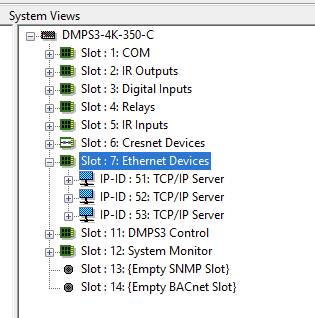
I’ve also added some DM-RMC-4KZ-100-C receivers to the two DM outputs, but just so I have somewhere to connect my signals. Switch to Program view and we can start configuring those servers:

Remember, we need to start with port 50001 to match our JSON profile. I’ll set the IP address for the server to 0.0.0.0 so it accepts connections from anywhere. You’ll need to setup the other 2 servers with incremented port numbers.
Now we can assign signals to those servers:

Lets look at how we might respond to display commands using a Serial I/O:

Quick and dirty! Now if you thought your code might find its way onto something besides a DMPS (which it very well could), you might want to handle routing more elegantly. But for our example, this is fine.
For the cable TV presets, I’m going to whip up a SIMPL+ module real quick:
// COMPILER DIRECTIVES /////////////////////////////////////////////////////////////////////

#ENABLE_DYNAMIC
#DEFAULT_VOLATILE
#ENABLE_STACK_CHECKING
#ENABLE_TRACE

#DEFINE_CONSTANT BUFFER_LEN 255

// INPUTS //////////////////////////////////////////////////////////////////////////////////

STRING_INPUT From_Zoom[BUFFER_LEN];

// OUTPUTS /////////////////////////////////////////////////////////////////////////////////

ANALOG_OUTPUT Aout;

// EVENT HANDLERS //////////////////////////////////////////////////////////////////////////

THREADSAFE CHANGE From_Zoom
{
	STRING cmd[BUFFER_LEN];
	STRING cmd1[BUFFER_LEN];

	While (1)
	{
		// Valid commands all terminate with a carriage return
		cmd = Gather("\r", From_Zoom);

		// Commands are formatted as CMD <arg1> <arg2> etc...
		// Convert CMD to uppercase to reduce user frustration
		cmd1 = Upper(Remove(" ", cmd));

		// Channel presets
		If (cmd1 = "PRESET ")
		{
			// Quick and easy!
			Aout = AtoI(cmd);
		}
	}
}

// MAIN ////////////////////////////////////////////////////////////////////////////////////

FUNCTION Main()
{
	WaitForInitializationComplete();
}
Now we can wire this up into our program to trigger button presses (using a SIMPL module that you can grab from my GitHub as well):
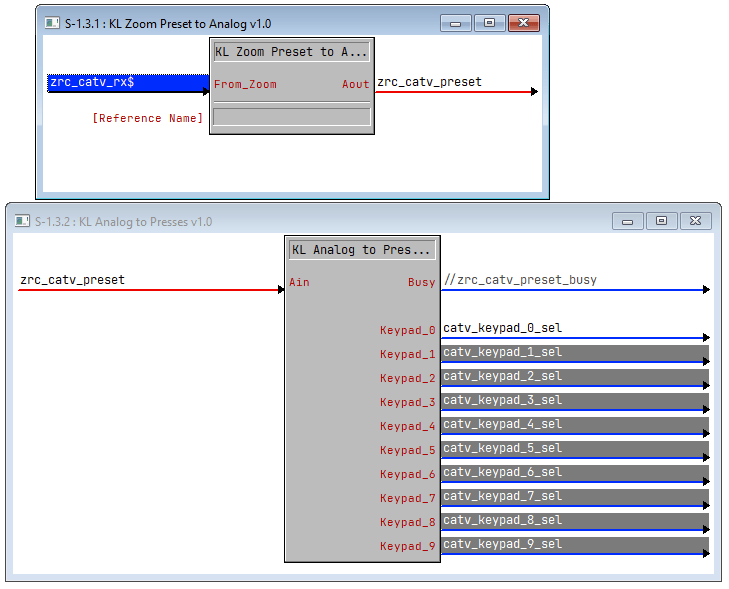
As long as channel numbers stay 3 digits or less, this can work for any channel they want to program a preset for.
I’m going to wire up the display logic so it compiles without warnings, but there you go! That’s all there is to getting Zoom to make things happen in Crestron.
Summary
I hope this was a good example showing how easy it is to add simple controls to Zoom that can do some complicated things (like video switching or TV channel presets) on the back end. Zoom has some nice automation events built-in, but it isn’t as programmable as Crestron. And building the logic in SIMPL Windows can be done in about an hour. It’s a really good combination of tools to extend what Zoom can do.
Thanks for reading!
 Kiel the Coder