
In the same vein as Recovering a VTZ Project, sometimes there are reasons you might need to make a backup of an already loaded touchpanel.
It would be nice if Crestron gave us a “Download User Project” option somewhere.
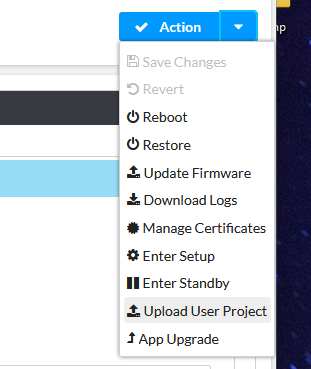
Alas, it’s missing from the web UI. It’s also absent from Toolbox. But we can work around that!
Make a Backup
You’ll need to be able to connect to the panel over the network to grab the files. I like to use WinSCP to do this. We’re going to backup the entire /display folder:
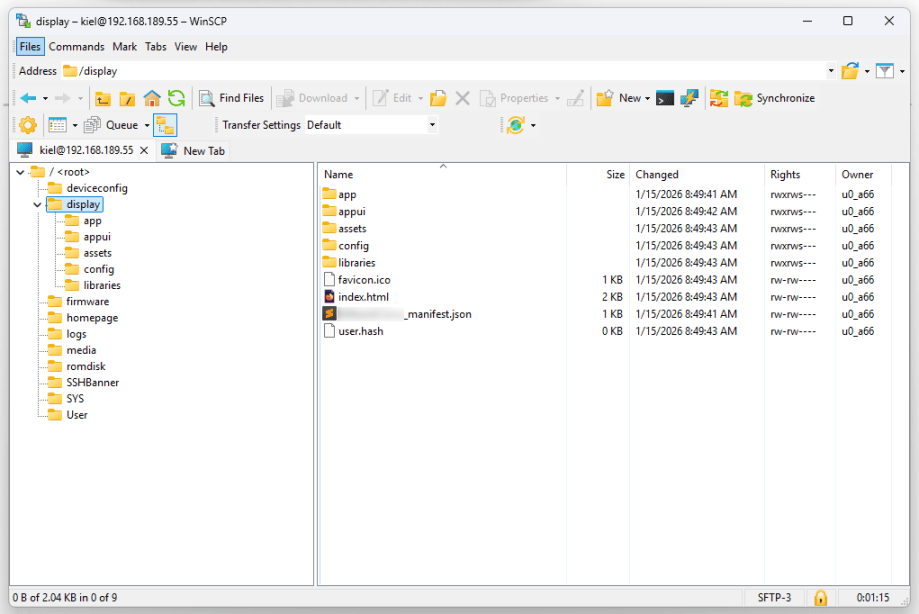
Drag the whole /display folder from the left pane to your desktop. Should only take 15 seconds or so to copy. Alternatively, you can use File Manager in Toolbox, but it’s going to take significantly longer.
With a SmartGraphics project, I’d say ZIP the entire folder, rename to .vtz and you’re good to go. With a .ch5z archive, we have to move things around a little.
Create the Archive
For this next step, I like to use 7-zip. Windows 11 makes it a little harder to use by hiding it in the context menu, but it’s still there. Select everything in the backup folder except for the ProjectName_manifest.json file.
Right-click on the selection, find the 7-zip context menu, and say Add to display.zip:
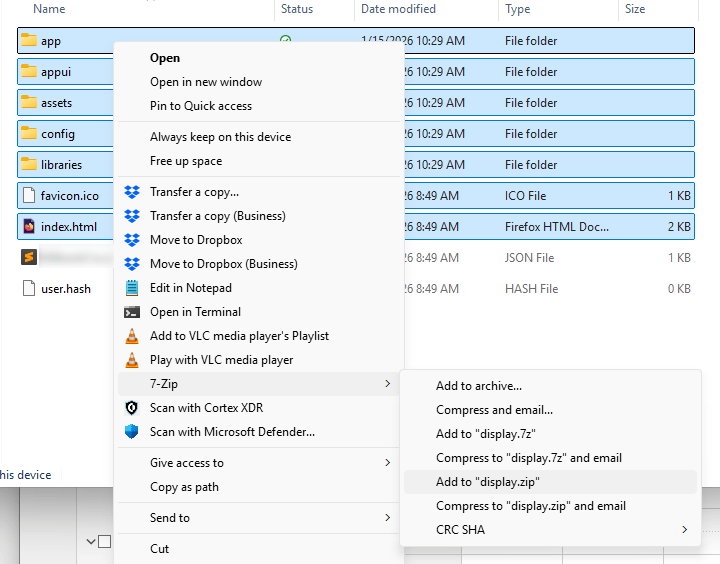
We need the zip file to match the project name mentioned in the ProjectName_manifest.json file. So rename display.zip to match ProjectName.ch5.
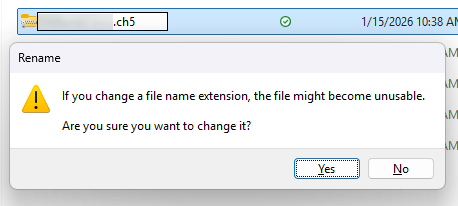
Now select just the .ch5 and ProjectName_manifest.json files, right-click, and use 7-zip to add to another ZIP file:
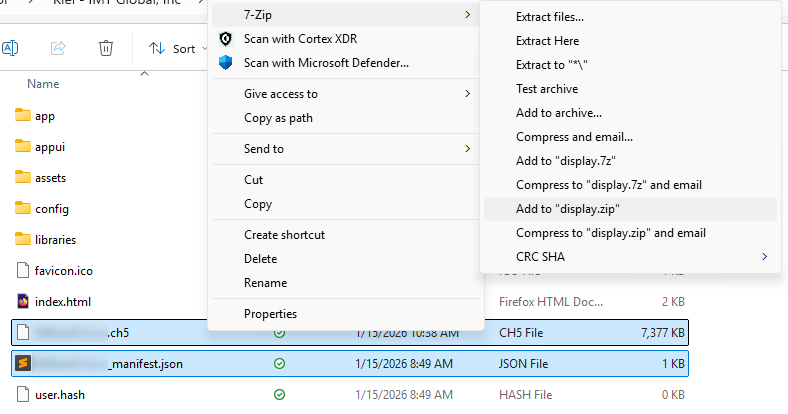
We can name this final ZIP file appropriately using ProjectName.ch5z. We now have a backup archive pulled from the damaged touchpanel that we can load to replacement touchpanels.
It Would Be Nice…
If this whole process was just a button click in the web UI that I could direct end-users to, it would make remote support much easier. Chances that a corporate employee can install WinSCP and 7-zip on their laptops is pretty slim.
But there you go! If you ever need to make a backup, there is a way.
 Kiel the Coder